
iCloud Storage Full? How to Free Up Space Without Paying for More
iCloud storage is almost always full of photos. Here's how to find what's using your 5GB (or 50GB) and clear it without upgrading your plan.
Or follow the steps below manually
“iCloud Storage Full” is one of the most persistent notifications on iPhone, and Apple’s suggested fix is always the same: pay for more. Before you do, it’s worth knowing that for most people photos are 80-90% of their iCloud usage, and clearing them out is very doable.
1. See what’s actually using the space
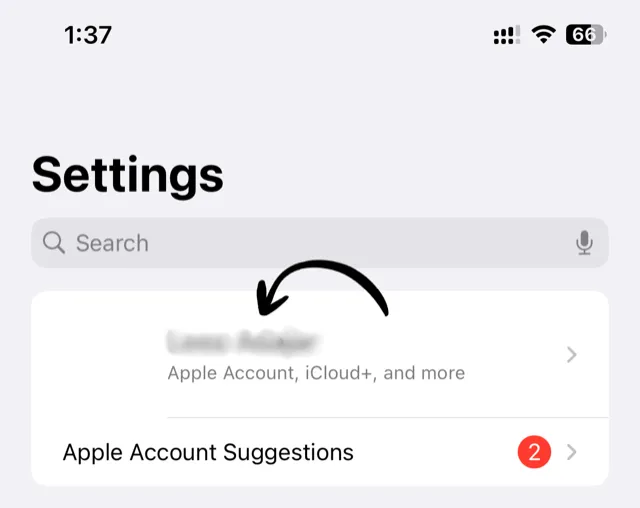
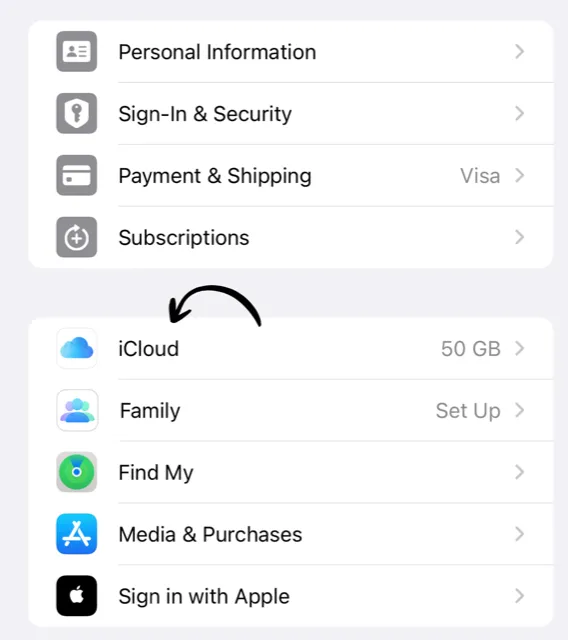
Open Settings, tap your name at the top, then tap iCloud.

The colored bar at the top shows what’s consuming your storage. For almost everyone, the big block is Photos.
2. Delete the photos you don’t want (this clears iCloud too)
If you use iCloud Photos, your library syncs, so deleting photos on your iPhone removes them from iCloud as well. Cleaning your camera roll is cleaning your iCloud.
The fastest way to do it is the month-by-month method: swipe right to keep, left to delete, review, done. A solid cleanup session often clears several gigabytes of iCloud space.
3. Empty Recently Deleted
Deleted photos keep counting against your iCloud storage for up to 30 days while they sit in the Recently Deleted album. To get the space back immediately, empty Recently Deleted. One minute, instant results.
4. Delete old device backups
Back in Settings → your name → iCloud → Manage Account Storage → Backups, you’ll often find backups of iPhones you no longer own. Delete them. A stale backup can be 2-10GB.
5. Review Messages attachments
If Messages is a big block in your storage bar, go to Settings → General → iPhone Storage → Messages and review large attachments. Old videos sent in group chats add up fast.
The order that gets results
- Photos cleanup (biggest win, every time)
- Empty Recently Deleted (makes step 1 count immediately)
- Old backups (one-off, often huge)
- Messages attachments (if needed)
Do those four and most “iCloud Storage Full” warnings disappear. No upgrade required.
Related Guides
Keep Your Camera Roll Clean
Swipe left to delete, right to keep. Clean up your photos one month at a time with Swipe2delete.
Download Swipe2delete